Move to iOS
- 3.7
- Rating
- 100.00M
- Installs
- Free
- Price

 Analysis by App-foxy
Changing from an Android phone to an iPhone can feel more complicated than it should. The phone itself is usually the easy part; the real worry is leaving behind contacts, photos, messages, calendars, and other personal information. Move to iOS is Apple’s free Tools app for handling that handover, and its entire value comes from making the first setup of an iPhone or iPad less manual.
I see it as a focused transfer utility rather than an everyday app. You do not open it for general file management or routine backups. You use it at a very specific moment: when the new Apple device is waiting to be configured and your Android phone still contains the information you want to bring with you. That narrow purpose is also its strength. Instead of asking a new iPhone owner to rebuild everything one item at a time, it provides a guided route between the two platforms.
What the transfer capability really changes
The important capability here is not simply copying files. It is reducing the number of separate decisions involved in moving from Android to iOS. Without a dedicated migration tool, I would have to think about contacts in one place, photos in another, calendars somewhere else, and messages as a particularly awkward problem. Move to iOS brings the process into the initial setup flow, which makes the transition feel like one project instead of several unrelated chores.
You May Also Like

 Blood Strike: 2.5 Anniversary
Blood Strike’s Loadouts Turn Every Drop Into a Tactical Gamble
A close look at Blood Strike’s custom loadouts: how fast access to signature weapons reshapes its battle royale rhythm, rewards preparation, and narrows the gap between fights.

 Pandora - Music & Podcasts
Pandora’s Music Is Easy to Start, but Harder to Recover
Pandora’s strength is its low-effort path from a seed to a station. Its weak spot is how much confidence it asks you to place in connection, setup, and quiet recovery.

 8 Ball Pool
 Is Built on Rivalries, Rematches, and Routine
A close look at the rivalries, rematches, shared routines, and unanswered safety questions that turn a quick pool match into a persistent mobile community.

 Samsung Music
’s Quiet Strength Is Playing What You Already Own
Its reach comes less from spectacle than from dependable access to a personal library. That simplicity is both the app’s strongest retention engine and its ceiling.

 AccuWeather: Weather Radar
AccuWeather Review: A Quick, Clear Forecast for Everyday Decisions
For everyday plans, the best forecast is the one you can understand quickly. AccuWeather makes rain timing, radar, and local conditions easy to act on, with a few trade-offs.

 Hill Climb Racing
Why Hill Climb Racing Still Turns Crashes Into One More Run
A tiny car, a bumpy hill and one more upgrade: Hill Climb Racing keeps resurfacing because its simple chaos makes every near-miss feel personal.
More From Our News Desk



That distinction matters for people who are not especially technical. A manual migration can be perfectly manageable for someone with a carefully organized cloud account and a small amount of data. For everyone else, the risk is not only losing information; it is forgetting that something important exists. An old calendar, a group of contacts stored locally, or years of camera images can be overlooked when the move is handled from memory.
Apple develops the app, and the product is designed specifically for moving data from Android to an iPhone or iPad. It is free, has an Everyone age rating, and supports Android devices running version 6.0 or later. Those details make it accessible to people using older Android hardware, although the experience still depends on the condition of both phones and on how much information needs to be moved.
The app has reached over one hundred million installs, with an average rating of 3.7 from around two hundred fifteen thousand ratings. I read that combination as a sign of a useful but situation-dependent tool. Many users probably only need it once, so their judgment is shaped by a single high-pressure transfer rather than repeated daily use. A smooth move can make it feel indispensable; a connection problem at setup can make the whole experience frustrating.
Why a guided move is better than starting from scratch
The biggest practical benefit is continuity. Your new iPhone should feel like your phone, not like an empty replacement that requires a weekend of reconstruction. A guided transfer gives you a clearer starting point and helps preserve the personal material that makes the device useful immediately.
I especially value this approach for people who keep a large photo library or rely heavily on contacts and calendars. Those are easy to underestimate until you try to recreate them manually. A person with a few hundred carefully selected files may not need a migration app, but someone with years of accumulated personal information can save considerable effort by preparing the move properly.
There is also a psychological advantage. When moving between Android and iOS, users are already learning a new interface and new system habits. Removing some of the data-entry work leaves more attention for the genuinely new parts of the iPhone experience. That is a modest benefit, but it is exactly the sort of friction reduction that makes a device switch feel less intimidating.
How I would use it during setup
The timing is crucial. Move to iOS is intended for the initial setup of the iPhone or iPad, not as a general-purpose tool for merging two phones whenever you feel like it. I would install it on the Android phone before beginning the move, keep both devices charged, and make sure I had enough uninterrupted time to complete the process rather than attempting it while rushing out the door.
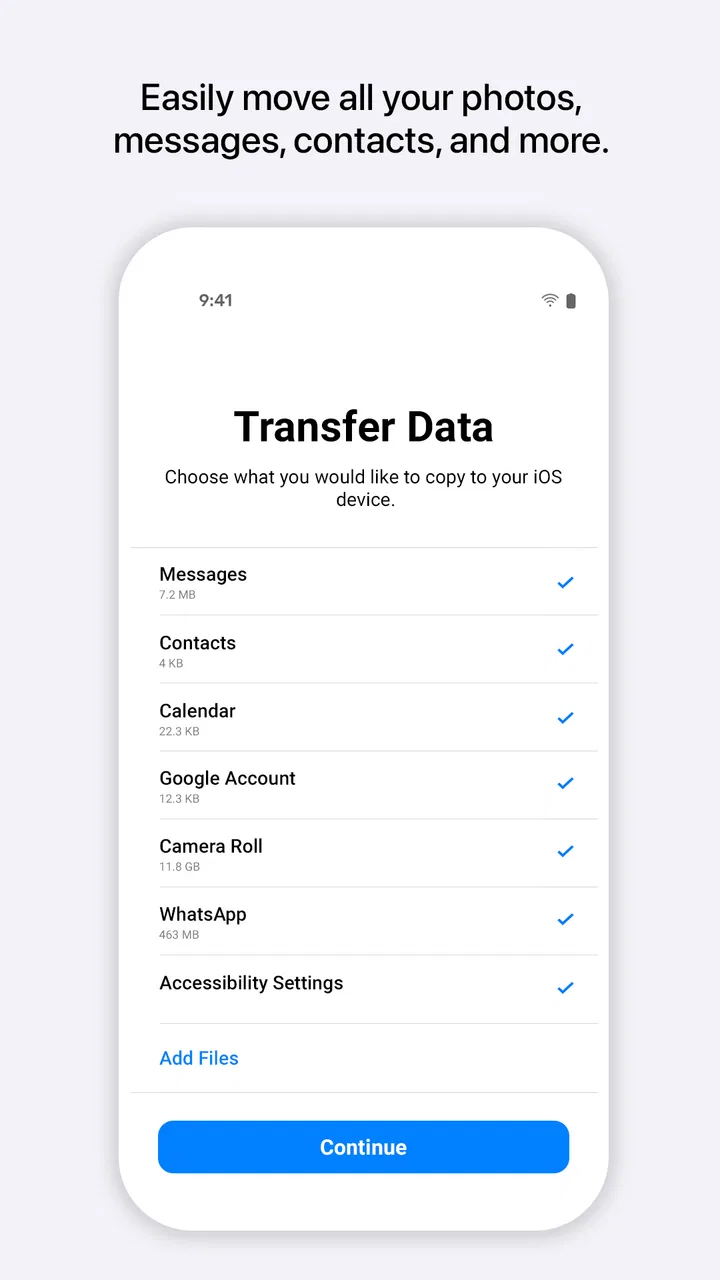
On the Apple device, the setup process provides the point where the Android transfer can be selected. The Android phone then uses Move to iOS to join that process. From there, the experience is guided: the devices establish a connection, the user chooses what to bring across, and the transfer runs while the phones remain available for the process.
That sounds simple, but preparation makes a noticeable difference. I would first remove obvious clutter from the Android phone, such as duplicate downloads or videos I no longer want. This is not because the app needs a perfectly tidy phone; it is because migration is a good moment to decide what deserves a place on the new device. A smaller, intentional transfer is easier to check afterward than a complete copy of years of digital clutter.
I would also avoid treating the progress screen as a signal that the phones can be separated. Moving data is not the same as creating a quick list of cloud accounts. If the transfer is interrupted, the result may require checking what arrived and possibly starting again. Keeping both devices close, connected to power when appropriate, and untouched until the process finishes is the sensible workflow.
What to check before pressing start
The first check is storage. The iPhone needs enough room for the material you want to move, particularly if your Android phone contains a large camera library. If the new device has less capacity than the old one, I would review videos and large files before beginning rather than discovering the mismatch halfway through setup.
The second check is account access. A transfer tool can move personal content, but it does not magically replace every service-specific sign-in or recreate every app’s internal state. I would make sure I know the passwords and recovery methods for important accounts before wiping or abandoning the Android phone. This is one of the most useful distinctions between transferring data and transferring an entire digital life.
The third check is messaging and media. I would not assume that every item will look identical on both platforms. Some content may depend on how it was stored, which app created it, or whether it belongs to a service that handles synchronization independently. After setup, I would inspect recent conversations, important contacts, camera albums, and upcoming calendar entries instead of trusting the transfer blindly.
A fourth practical tip is to keep the old Android phone intact until the new iPhone has been checked. This is more important than the transfer itself. The old device is your fallback if a contact is missing, an image did not appear where expected, or you discover that an authentication app needs attention. Once you erase it, troubleshooting becomes much harder.
A realistic move from a daily Android phone
Imagine someone who has used an Android phone for several years and is moving to an iPhone before a busy workweek. Their phone contains family photos, personal contacts, calendar appointments, and conversations they still need to reference. They do not want to spend the evening exporting individual files or rebuilding appointments manually.
I would have that person prepare the Android phone the night before, confirm that the iPhone has enough capacity, and begin the setup when both devices can remain together. During the transfer, I would resist the temptation to use either phone for unrelated tasks. Once the iPhone reaches the home screen, I would check the next few calendar events, call a couple of important contacts, open several older photos, and confirm that the information needed for work and family is available.
The value in this scenario is not that every part of the transition becomes invisible. It is that the highest-risk part becomes structured. The user still needs to sign into services, learn iOS, and decide which apps to reinstall, but they are not starting with an empty personal record.
Where the experience can become frustrating
My main reservation is that the app operates during a narrow window. If the iPhone has already been fully configured, Move to iOS is not the same as a flexible synchronization tool that can simply merge selected content into an established device. That makes planning important. Someone who wants to add a few forgotten files weeks later may find a cloud service, a computer, or an app-specific export more convenient.
The transfer also depends on cooperation between two different platforms. Even when the instructions are clear, wireless setup can be sensitive to interruptions, distance, low battery, or other activity on the phones. I would not schedule the move immediately before a flight, presentation, or work shift. The app can simplify the process, but it cannot remove the practical limits of moving a large personal collection between devices.
Another trade-off is selectivity. A complete migration sounds attractive, yet bringing everything over may reproduce clutter that you were hoping to leave behind. I prefer to treat the selection stage as a chance to separate essential information from disposable material. The app helps with the move, but it does not make those personal decisions for you.
There is also a difference between personal data and app behavior. Reinstalling an app on iOS does not guarantee that it will look exactly as it did on Android, and some apps store information in ways that require their own account or backup process. I would make a separate list of apps that matter for work, banking, authentication, health, or travel, then handle each one according to its own sign-in and recovery requirements.
For users who already keep everything in services that sync cleanly across Android and iOS, a manual setup may be preferable. Someone whose contacts live in a cloud account, whose photos are already backed up, and who does not care about bringing over older messages may appreciate the control of starting fresh. In that case, Move to iOS is helpful but not essential.
How it compares with the usual alternatives
The usual alternatives fall into three groups: cloud synchronization, computer-based copying, and manual recreation. Cloud synchronization is convenient when the same service works well on both platforms, but it can leave gaps between what is backed up and what is actually visible on the new phone. It also requires remembering which account holds which information.
Computer-based copying gives more visibility and can be useful for large folders, documents, or media that you want to organize yourself. The drawback is that it adds another device and another set of steps. For a first-time iPhone owner, that extra control may feel like extra responsibility.
Manual recreation is the cleanest option if you want a fresh start, but it is the least forgiving when you have years of personal information. I would choose it for a deliberately minimal setup, not because it is the easiest route. Move to iOS sits between these choices: it is more structured than copying files by hand and more direct than hoping every cloud service synchronizes perfectly.
The right choice depends on the kind of move you want. If your priority is preserving the familiar contents of the Android phone while beginning iOS setup, Apple’s tool is the most natural starting point. If your priority is reorganizing your digital life, the app may transfer more than you actually want, and a selective cloud or computer workflow could be better.
Who gets the most from Move to iOS
I would recommend it most strongly to Android users moving to an iPhone or iPad for the first time, especially those with substantial personal content and limited patience for technical workarounds. It is also a good fit for families helping someone else switch devices, because a guided process is easier to supervise than a collection of separate export instructions.
It is useful for people who want continuity but do not have a carefully maintained backup routine. The app gives that user a defined moment to gather important information and check the result. The best experience comes when the transfer is treated as a planned migration rather than a quick download followed by random tapping.
I would be more cautious about recommending it to advanced users who already have a detailed backup strategy, need fine-grained folder control, or want to merge data into an iPhone that is already in daily use. Those users may prefer to choose individual services and move only what they understand. The same applies to anyone whose main goal is a clean break from old photos, messages, and accounts.
Because it is free and rated for Everyone, there is little downside to having it ready before a planned switch. Its current version is 4.0.3, and the app has been available since September 16, 2015, which gives it a long history as Apple’s dedicated bridge for this particular transition. I would still focus less on the age of the tool and more on preparation: enough storage, known account credentials, charged devices, and a careful post-transfer check.
My final view is that Move to iOS succeeds when you use it for what it is: a one-time bridge that makes an Android-to-iPhone move more organized. It does not eliminate every compatibility issue, and it is not a replacement for app-specific backups or a thoughtful cleanup. But for the person staring at a new iPhone and wondering how to bring years of personal information along, the guided transfer is a meaningful reduction in risk and effort.
I would use it before setting up the new Apple device, keep the Android phone untouched until everything important had been verified, and choose the content deliberately rather than automatically. With those expectations, this Tools app is practical, focused, and worth trying for the exact moment it was built to handle.
FAQs for Move to iOS
01What is Move to iOS and how does it work?
Move to iOS is an application developed by Apple to assist users in transferring data from an Android device to an iOS device. It securely transfers data like contacts, message history, photos, videos, web bookmarks, mail accounts, and calendars. The app creates a private Wi-Fi network between the devices to ensure a seamless transfer process.
02Is Move to iOS compatible with all Android devices?
Move to iOS is compatible with Android devices running Android 4.0 and later. However, the performance can vary depending on the device's hardware capabilities and operating system version. It's always recommended to check the app's requirements and ensure your device is updated for the best experience.
03What data can and cannot be transferred using Move to iOS?
Move to iOS can transfer most essential data, including contacts, message history, photos, videos, web bookmarks, mail accounts, and calendars. However, it doesn't transfer apps, music, or passwords. Users will need to download apps again from the App Store and manually move or sync other data types.
04Are there any costs associated with using Move to iOS?
Move to iOS is a free application, and there are no hidden costs or fees associated with its use. It is designed to make the transition from Android to iOS as smooth and cost-effective as possible. Users only need to ensure they are connected to a stable Wi-Fi network to facilitate the transfer.
05What should I do if I encounter issues during the transfer process?
If you experience issues during the transfer, ensure both devices are fully charged and connected to Wi-Fi. Restart both devices and try the process again. If problems persist, check Apple's support page for troubleshooting tips or contact their support team for further assistance.
Pros
- Seamless data transfer between Android and iOS.
- Supports transfer of most data types.
- Simple and user-friendly interface.
- Secure and private data transfer.
- Free to use with no hidden costs.
Cons
- Requires Wi-Fi for the transfer process.
- Limited to transferring data to new iPhones.
- May not support all Android models.
- Transfer speed can be slow for large data.
- Occasional connection drop issues.

Move to iOS
Gallery